How to Add Animated Subtitles to Your UGC Videos (Step-by-Step)

How to Add Animated Subtitles to Your UGC Videos (Step-by-Step)
User-Generated Content (UGC) is the lifeblood of modern advertising and social media marketing. Brands are actively seeking UGC creators who can produce authentic, high-converting videos. However, with the vast majority of users scrolling feeds on mute, your UGC videos will fail to perform if they do not capture attention immediately. The secret weapon used by top-tier UGC creators is **animated subtitles**.
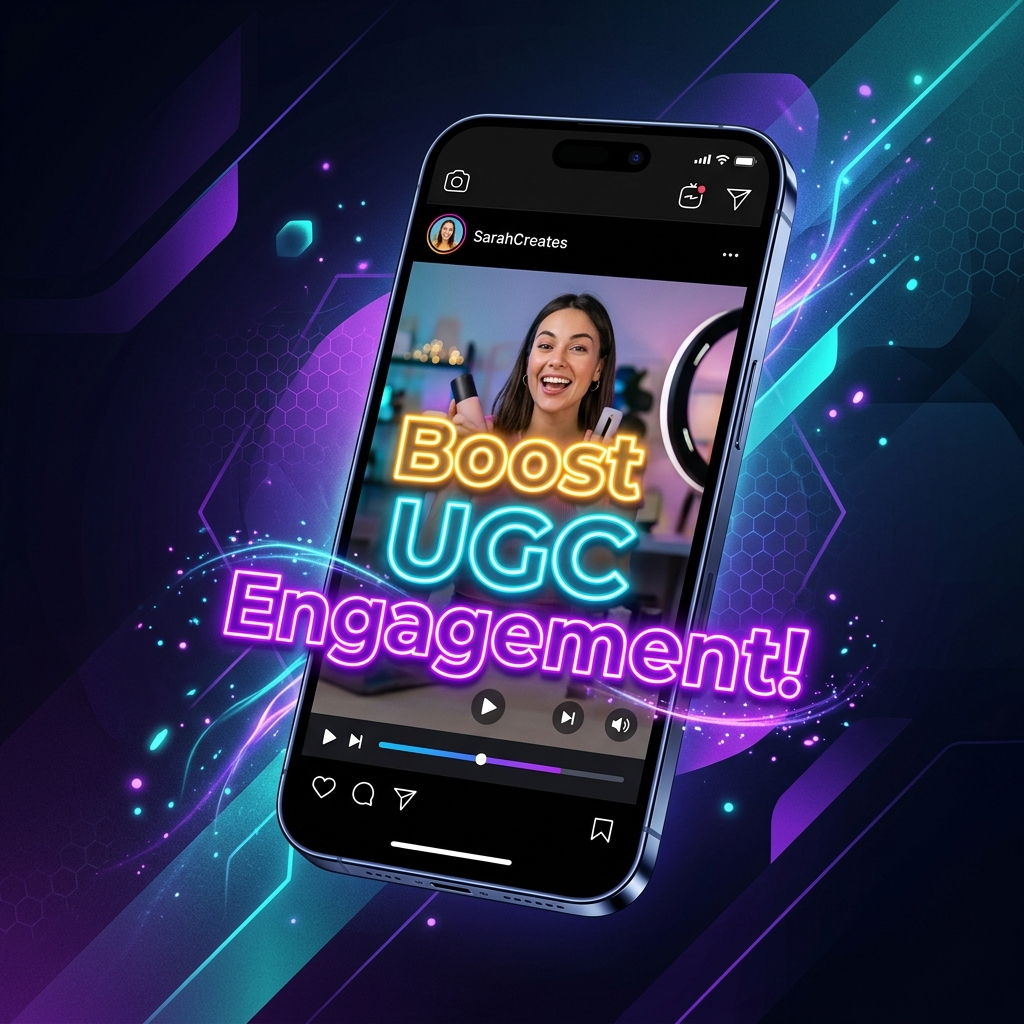
Dynamic, word-by-word highlighted captions stop the scroll, increase watch time, and make your videos accessible. In this guide, we will explore the psychology of animated text, look at the visual impact of subtitles on conversion rates, and show you exactly how to add them to your UGC videos in seconds with SRTGen.
1. Why UGC Videos Need Animated Subtitles
In the highly competitive world of social media, you have less than three seconds to hook a viewer. Here is why animated subtitles are critical for UGC success:
- Freeze the Scroll: When a user scrolls past a video, their eye is naturally drawn to motion. Bouncing, glowing, or highlighting text instantly registers in the brain and keeps the viewer from scrolling away.
- Reinforce Key Selling Points: UGC is meant to sell. By highlighting key phrases like \"insane results\" or \"50% off\" with bright colors and animations, you ensure the brand's core message sticks.
- Professional Finish: Brands pay a premium for high-quality content. Adding clean, beautifully styled subtitles raises the production value of your deliverables, allowing you to charge higher rates as a creator.
2. Choosing the Right Style for Your Niche
Different brands require different aesthetics. SRTGen provides a variety of built-in presets to fit any UGC style:
- The Viral Pop (Alex Hormozi Style): Energetic, bold fonts with alternating yellow and green highlight colors. Perfect for TikTok, Reels, and fast-paced product reviews.
- Sleek Minimalist: Clean, elegant fonts with subtle dark backgrounds. Best for high-end beauty, luxury fashion, and aesthetic lifestyle UGC.
- Gaming & Tech: Glowing neon outlines and modern san-serif typography that feels immersive and tech-forward.
3. Step-by-Step Guide to Adding Subtitles with SRTGen
You do not need complex editing software like Adobe Premiere or After Effects to get professional results. Follow these simple steps:
- Upload Your UGC Edit: Drag and drop your final video file into the SRTGen Workspace. Our browser-side processing will extract the audio instantly.
- AI Transcription: Click transcribe. Our industry-leading AI will convert your speech to text with up to 99% accuracy in under a minute.
- Select a Style Preset: Go to the \"Styles\" tab and choose a preset. You can customize the font family, font size, stroke thickness, and shadows to match the brand's guidelines perfectly.
- Enable Word-by-Word Animation: Toggle the \"Karaoke\" option on. Watch the preview as the words highlight in real-time as they are spoken.
- Export the Burned Video: Click \"Export Video\". SRTGen's high-speed cloud rendering engine will burn the high-fidelity subtitles directly into the video pixels. Download your finished UGC file, ready for client delivery!
Conclusion: Level Up Your UGC Career
Adding animated subtitles is one of the easiest ways to improve client satisfaction and portfolio performance. By delivering ready-to-publish, high-retention videos, you position yourself as a premium UGC creator.
Ready to stand out? Head to the SRTGen Workspace and subtitle your first video today!
David Lin
Founder, SRTGen
Video creator and developer focused on building professional automation tools.