Introducing AI Video Studio: Multi-Track Timeline Editing, Canvas Ratios & Cloud Production


Introducing AI Video Studio: Multi-Track Timeline Editing, Canvas Ratios & Cloud Production
We are thrilled to announce one of our biggest workspace upgrades of 2026: the official release of SRTGen AI Video Studio. Video Studio transforms SRTGen from an AI caption generator into a complete, browser-based multi-track video editing suite.
Whether you are creating vertical TikTok videos, widescreen YouTube tutorials, or square social ad assets, Video Studio gives you complete creative control over video clips, audio tracks, AI voice dubbing, animated captions, and canvas ratios—all synced seamlessly to your cloud workspace.
What is AI Video Studio?
Legacy video editors like Premiere Pro or Final Cut are complex and resource-heavy, while simple online editors lack multi-track layering and precise timing controls. SRTGen AI Video Studio bridges that gap, offering a lightweight yet powerful multi-track editing environment powered by WebGL and HTML5 Canvas technology.
Key Features of AI Video Studio
1. Multi-Track Timeline Editing
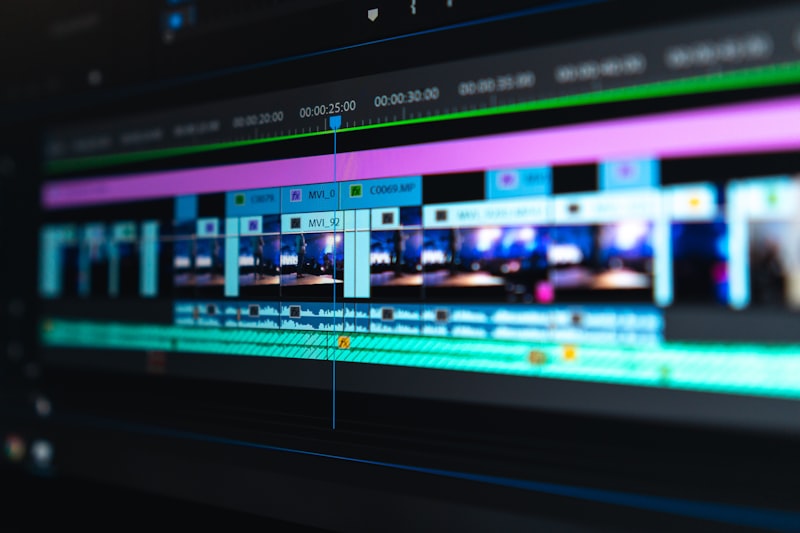
Arrange and stack multiple video clips, voiceover tracks, background music, and animated subtitle layers on dedicated timeline tracks. Split clips at the playhead, drag and reposition layers, adjust speed, and fine-tune start/end trim offsets down to the millisecond.
2. Flexible Canvas Aspect Ratios
Switch your workspace canvas seamlessly between standard video aspect ratios:
- 9:16 Vertical: Ideal for TikTok, Instagram Reels, and YouTube Shorts.
- 16:9 Landscape: Perfect for YouTube, Vimeo, and desktop presentations.
- 1:1 Square & 4:5 Portrait: Optimized for Facebook, Instagram feeds, and LinkedIn video ads.
3. Integrated AI Voice Dubbing & Speech Generation
Directly inside the timeline, you can generate natural AI voiceovers in 100+ languages or clone your own voice. Synchronize dubbed voice tracks with video clips and auto-adjust volume levels for pristine audio balance.
4. Animated Karaoke Subtitles & Styling
Apply viral ASS/SRT caption styles, customize font sizes, colors, text strokes, and word-by-word karaoke animations that sync automatically with your audio track.
5. Cloud Rendering & Zero Local GPU Strain
Video Studio processes rendering on cloud servers, saving your laptop's battery and CPU. Render and download 1080p and 2K HD MP4 videos with lightning speed.
How to Use AI Video Studio
- Navigate to the SRTGen Video Studio Workspace.
- Click "New Project" and choose your project name and canvas aspect ratio.
- Upload your raw video, audio, or image assets.
- Arrange tracks on the timeline, add AI subtitles or voice dubbing, and click "Render Video".
Try AI Video Studio today in your SRTGen Workspace!
David Lin
Founder, SRTGen
Video creator and developer focused on building professional automation tools.


